OpenRouter is an AI platform, and in order to use the features of this platform in WP Travel, it is necessary to generate an API key that will allow secure access to its services. By adding OpenRouter api key in WP Travel, you can access AI-powered content generation right from your WordPress dashboard. These features can be helpful in crafting travel-related content such as trip descriptions, itineraries, and other essential details efficiently.
The API key is a way to make sure that the services provided by OpenRouter are only available to authorized users. Once linked up, WP Travel will be able to use AI to optimize the process of creating content and ensure consistency across your travel website pages. The below are the steps to follow to generate and include an OpenRouter API key into WP Travel in a very simple and secure manner.
Step 1: Open AI Settings in WP Travel
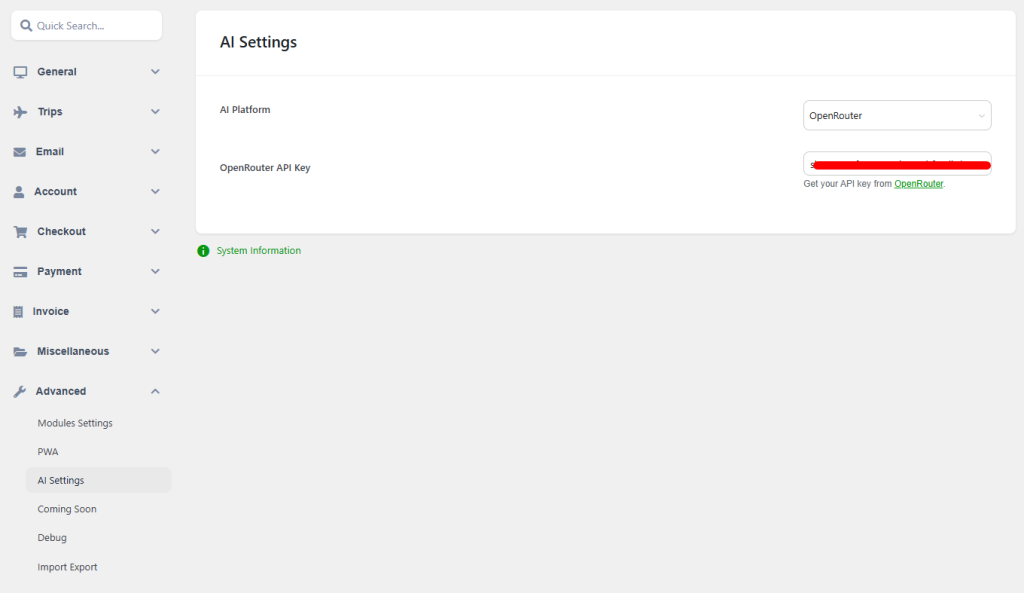
Go to WP Travel → Settings → Advanced → AI Settings.
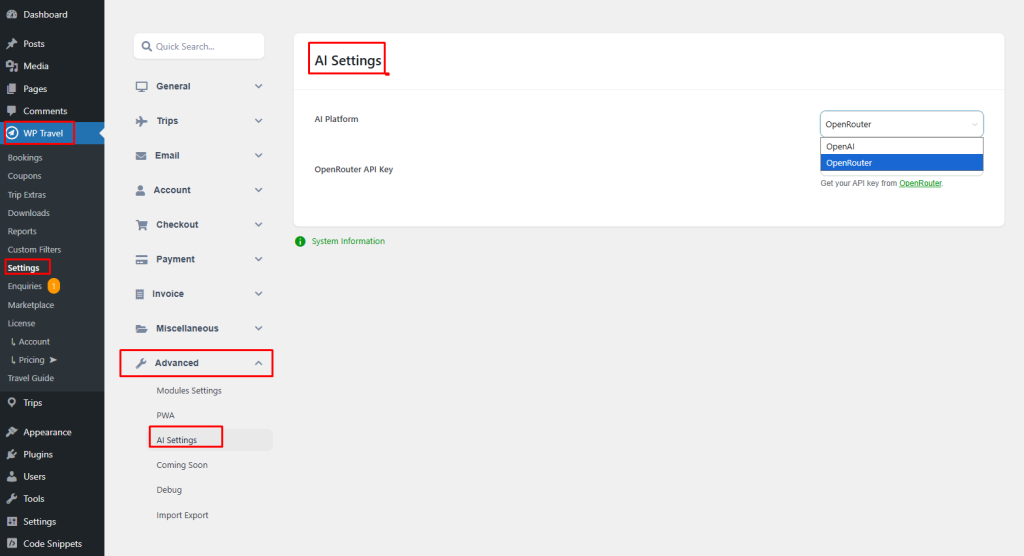
Step 2: Select AI Platform
From the AI Platform dropdown, select OpenRouter.

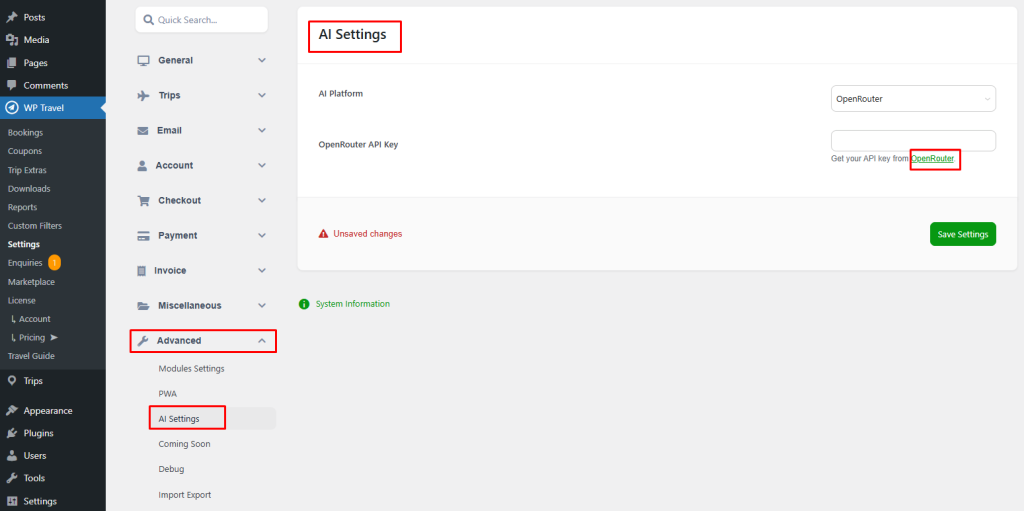
Step 3: Get Your OpenRouter API Key
Click on Get your API key or visit the OpenRouter website:
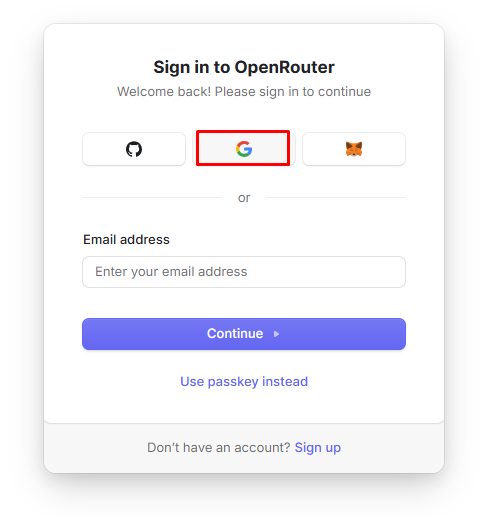
Step 4: Sign In to OpenRouter
You will be redirected to the OpenRouter sign-in page.
Choose Sign in with Google for faster access.
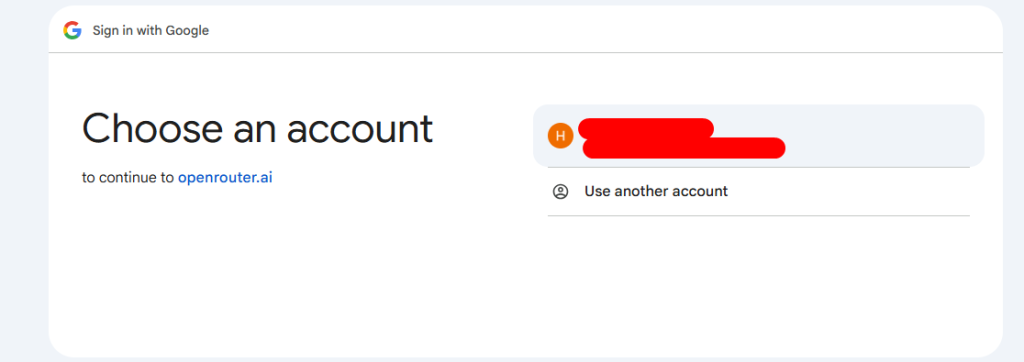
Step 5: Choose Your Google Account
Select the Google account you want to use to sign up or log in.
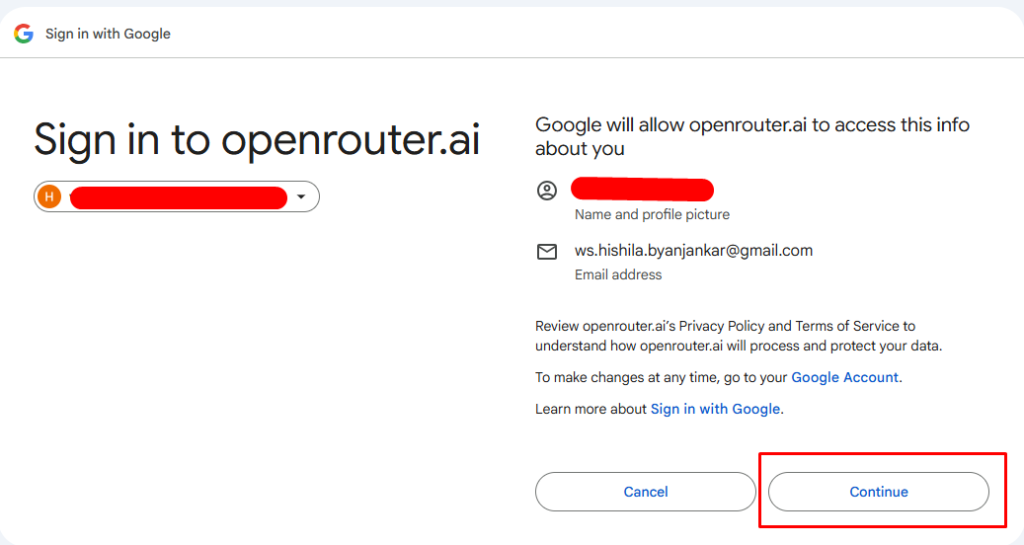
Step 6: Continue With the Selected Account
Click Continue with this account to proceed.
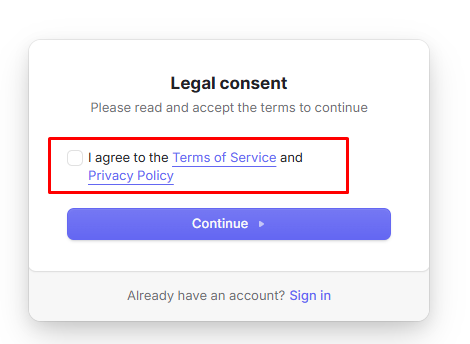
Step 7: Accept Terms and Conditions
Tick the checkbox to agree to OpenRouter’s terms and conditions.
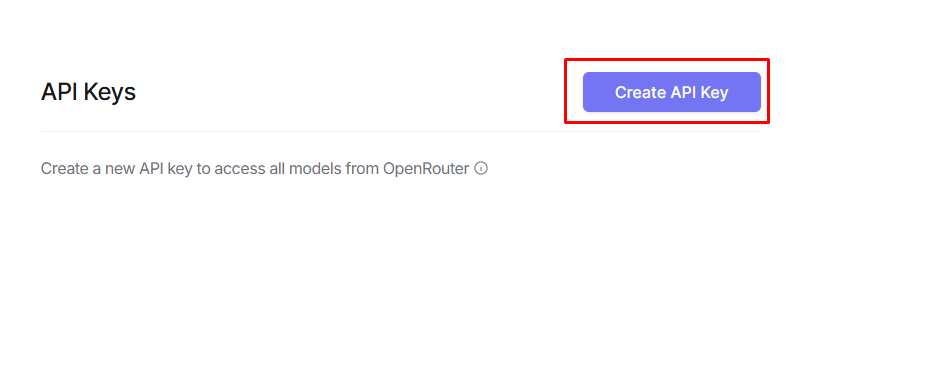
Step 8: Create a New API Key
Click on Create API Key.
Step 9: Fill in API Key Details
Enter the required details (such as the key name) and click Create.

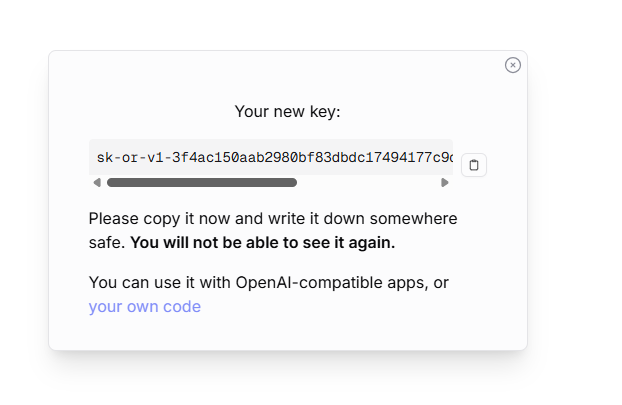
Step 10: Copy the API Key
Copy the generated API key
Step 11: Add the API Key to WP Travel
Paste it into the API Key field in WP Travel → Settings → Advanced → AI Settings.
Check the WP Travel documentation to learn more about configurations, modules, payments, and shortcodes.
Your feedback helps us improve. Feel free to share your thoughts!
Need assistance? Contact our support team, join our Facebook community, and subscribe to our YouTube Channel for video tutorials.
You can also find us on Facebook, Instagram, LinkedIn, TikTok, and X. Thank you for choosing WP Travel.
If you are a WP Travel Free user thinking about upgrading to Pro, simply click on the banner below.


WP Travel Editorial is a team of WordPress and travel industry experts dedicated to delivering technical resources, travel business guides, and general travel insights. With over 10 years of experience, the team provides in-depth release notes, feature updates, and informative articles to help tour operators and travel enthusiasts succeed in the evolving travel landscape.
From plugin updates and industry trends to practical travel resources, WP Travel Editorial shares valuable content that supports both the travel industry and avid travelers.